Speech to text
How to use speech to text on iPhone
Enable Apple Dictation, tap the keyboard microphone and edit your spoken text. Try a short browser draft below, then follow the iPhone steps for the input method you want to use.
Live dictation · One-minute browser trial · Free iPhone app
Try speech to text now
Tap Start dictating, speak for up to one minute, then stop and copy your transcript into Notes, Messages or another editor.
What the Voicetation keyboard adds
Speech to text where you already write
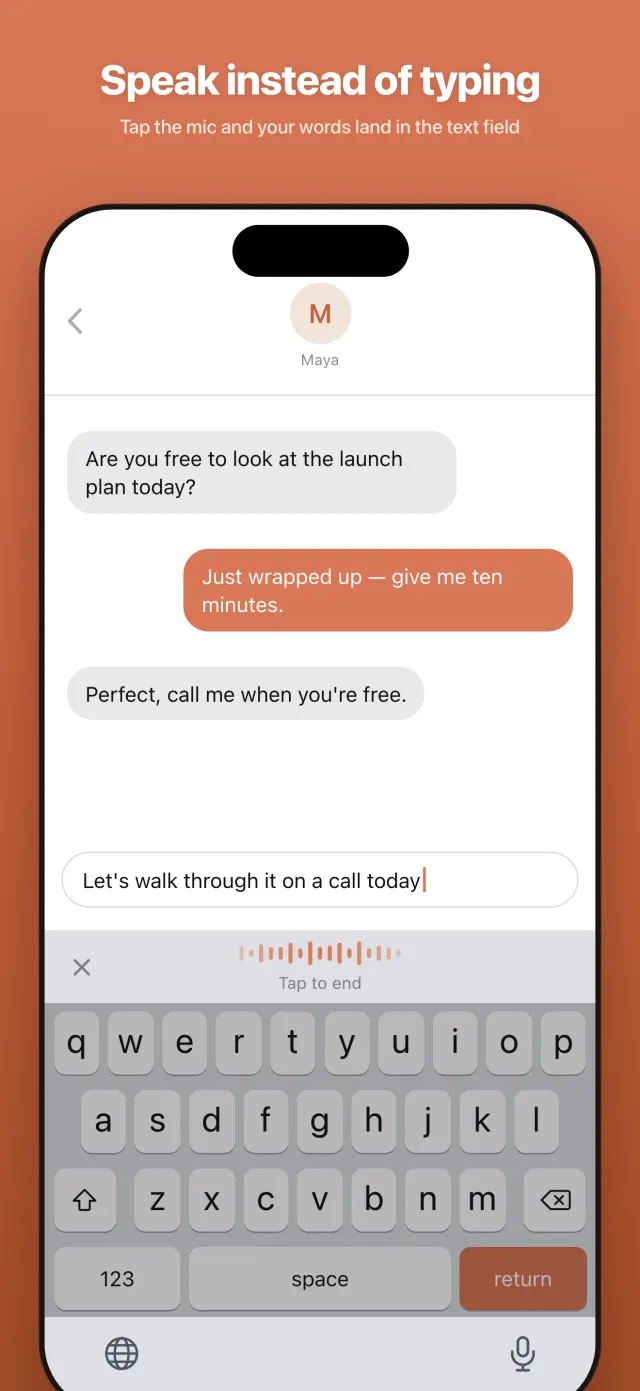
Dictate into text fields in apps such as Messages, Mail, and WhatsApp. Some apps and secure fields do not allow third-party keyboards.
Cleaner than raw transcripts
Punctuation and casing are handled automatically so speech to text looks like something you would actually send.
Personal dictionary
Add names and work terms as recognition hints. Check the result before sending: a dictionary improves the odds, not a guarantee of perfect spelling.
90+ languages plus auto-detect
Choose a supported language or use automatic detection when you switch between conversations.
Rewrite after you speak
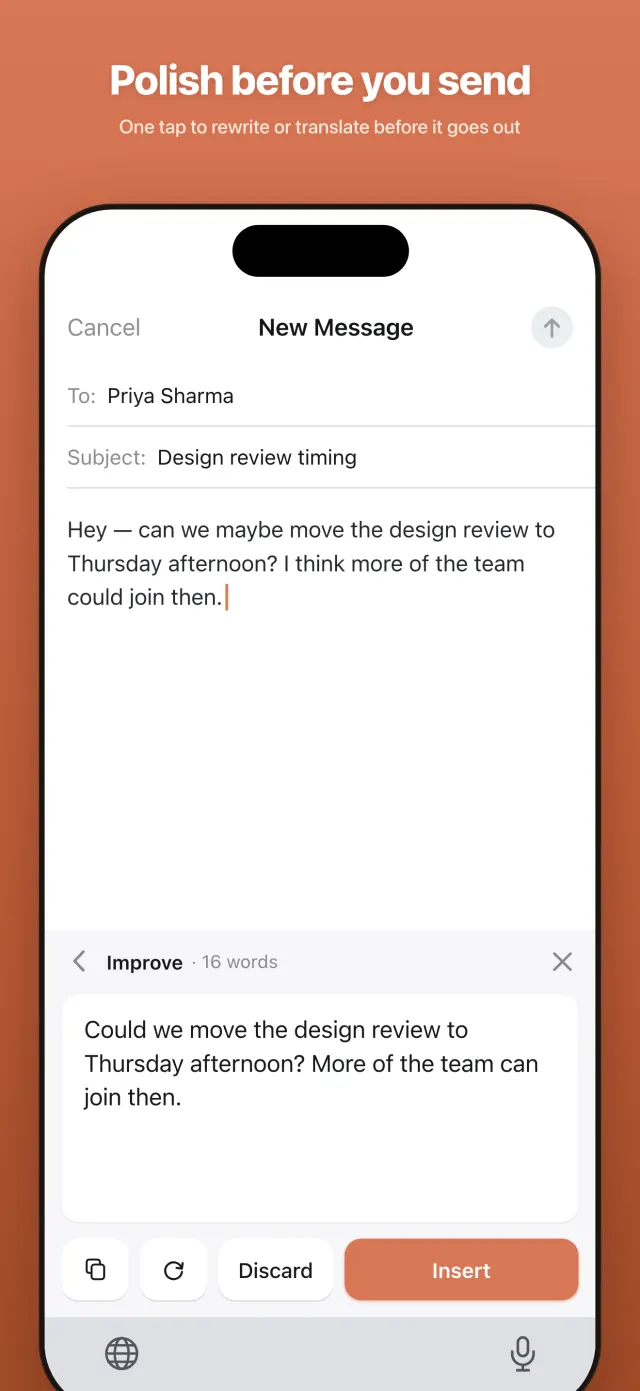
In the iPhone keyboard, preview a rewrite or translate into 90+ languages, then tap Insert to apply the result.
No account wall
Install and start. Speech to text should not require a new login.
Choose, set up, and try speech to text
Convert a short spoken message into text here
Allow microphone access, tap Start dictating, and speak a complete sentence. Tap Stop, wait for the transcript, and use Copy text. Paste it into your editor to review and correct it. The browser tool records up to one minute and does not upload an existing audio file.
Try: “Please move our meeting to Friday at ten. I will send the notes this afternoon.” Check Friday, ten and the promised next step. You can repeat the same sample with another input method to compare the corrections you need rather than assuming an accuracy percentage.
How to use the speech-to-text feature already on your iPhone
For a quick text, you may not need another app. Open Settings → General → Keyboard and turn on Enable Dictation. Open Notes or Messages, tap the text field, switch to the Apple keyboard, and tap its microphone. Speak, stop dictation, and check the text before sending.
Apple calls this Dictation. In supported languages it can run on the device; availability varies by language and region. See Apple’s instructions or our [talk-to-text setup guide](#turn-dictation-on) for commands and troubleshooting.
When a speech-to-text keyboard is worth adding
Try a dedicated keyboard when the built-in feature works, but does not fit how you write. Voicetation is designed for a reply you compose out loud, including pauses while you think.
- Longer replies: keep a take open until you stop it, up to 10 minutes per take.
- Recurring names: add names and jargon to a personal dictionary, then check them in the output.
- Editing: preview an optional rewrite before inserting it. You decide whether to use the revised wording.
Try the same message before changing your daily keyboard
Use a short, non-sensitive test: “Please move our meeting to Friday at ten. I will send the notes this afternoon.” Dictate it with Apple Dictation and with Voicetation, then check the date, time, and punctuation. Add a name you often need to correct and try again.
Compare the corrections and the steps needed to finish the message, not just how quickly recording starts. This is a suggested test, not a published accuracy benchmark. You can keep both keyboards installed.
Use the tool at the top of this page for a browser sample. It produces text to copy; use the iPhone app for keyboard activation and writing directly into a supported text field.
Use speech to text in Messages, WhatsApp, and Mail
Tap the text field first, then use the keyboard microphone. An app’s own microphone may send an audio message instead. Dictation creates editable text; it does not send your message for you.
Follow the WhatsApp walkthrough or iMessage guide. For email, dictate the body, then review the recipient, subject, names, and numbers before tapping Send.
Limits to check before you install
- Device: Voicetation is an iPhone app requiring iOS 18 or later. Some apps block custom keyboards; password fields use Apple’s keyboard.
- Connection: cloud recognition is the primary path. On iOS 26 and later, an enabled offline fallback can use Apple’s on-device recognition for supported languages, once the speech model is downloaded. On iOS 18 to 25, dictation needs a connection.
- Task: this is live text input, not meeting recording, file transcription, or automatic transcription of received messages.
- Trouble starting: if Apple Dictation also fails, check settings and the microphone before installing an alternative. Use our dictation troubleshooting guide.
Keep dictation, translation and recording transcription separate
Dictation turns the speech you are saying now into text. Translation changes that text into another language. File transcription starts from an existing recording. Choosing the right workflow avoids installing a live keyboard when you actually need an audio-file importer.
Voicetation supports 90+ spoken languages plus automatic detection and 90+ translation target languages. For a received WhatsApp voice note, see the distinction and transcript instructions in our WhatsApp guide. The browser tool does not receive or transcribe your chat history.
Review and polish the transcript
Wait for the final transcript, select the passage to change, and tap ✨. Choose Improve, Formal, Concise or Friendly. Read the preview, then tap Insert to apply it or Discard to keep your original. A host app may expose only part of a long draft, so selecting a short passage gives you a clearer editing target.
Check names, dates, amounts and words such as “not” before rewriting. An AI rewrite may sound fluent while preserving a recognition mistake, so correct the source first. For work requests, the AI keyboard guide explains what to compare before Insert.
If the browser cannot start recording
Allow microphone access for this site in your browser and check the device’s microphone permission. Use a supported current browser on a secure connection. Finish other recordings before trying again. If you decline permission, no transcript can be produced.
If you see a busy or verification message, follow the displayed instructions or retry later. Do not keep pressing Start while a transcription request is still running. The browser trial uses a cloud service and requires a connection; it is not the app’s offline fallback.
Talk to text on iPhone: a quick first test
“Talk to text,” “voice typing,” and “dictation” describe the same live-input task here. Start with the built-in keyboard; you do not need to download an app just to try it.
- Turn on Enable Dictation in Settings → General → Keyboard.
- Open a new note in Notes, tap the body, and select Apple’s keyboard.
- Tap the keyboard microphone and say: “I will call you tomorrow.”
- Stop dictation and check that editable text appeared. Nothing is sent from Notes.
If that works, repeat it in the app where you want to write. If an app records a voice message instead, use the keyboard’s mic rather than the app’s audio button. If no text appears in Notes either, use the symptom-based troubleshooting guide.
Already know the basics? Compare dictation apps before installing an extra keyboard.
Option 1 — Apple Dictation (built-in)
Apple Dictation is already on your iPhone. It types into the field you are using — Messages, Mail, Notes, search — so you do not copy and paste from another app.
Turn Dictation on
- Open Settings → General → Keyboard
- Turn on Enable Dictation
- Confirm if iOS asks
If the switch is greyed out or missing, Screen Time or a work/school profile may be blocking it. Fixes for that (and for a missing mic key) are in iPhone Dictation not working.
Dictate in any text field
- Open the app you want to write in and tap the text field
- Switch to the Apple keyboard with the globe key if you are on a third-party keyboard — Apple’s microphone belongs to Apple’s keyboard
- Tap the microphone key. On Face ID iPhones it is usually bottom-right below the keys; on Home-button iPhones it sits next to the space bar
- When the listening indicator appears near the cursor, speak in whole phrases
- Stop by tapping the mic again, saying “stop dictation,” or remaining silent for about 30 seconds (Apple’s design, not a bug)
You can keep typing while Dictation is on — the keyboard stays open so you can mix voice and touch. Details: Apple’s Dictate text on iPhone guide.
Spoken commands that actually help
In supported languages you can say punctuation and formatting out loud. Common ones:
| Say | Result |
|---|---|
| period / comma / question mark / exclamation point | . , ? ! |
| new line / new paragraph | line or paragraph break |
| quote / end quote | “ ” |
| open parenthesis / close parenthesis | ( ) |
| Cap | Capitalize the next word |
| All caps … all caps off | Uppercase a run of words |
Apple can also insert commas, periods, and question marks automatically in supported languages. Turn that off under Settings → General → Keyboard → Auto-Punctuation if you prefer to add them yourself.
Edit-by-voice commands such as “change … to …”, “select …”, and “delete …” are, per Apple’s dictation commands list, available in U.S. English on iPhone 12 and later (not iPhone SE). Punctuation and “new line” work much more widely. Spell tricky names out loud (“Steven S-T-E-P-H-E-N”) when recognition guesses wrong.
Tips for better Apple Dictation
- Speak a full sentence, not one word at a time — recognition uses context
- Wait a beat after the mic appears so the first words are not cut
- Switch the Apple keyboard language with the globe key before you speak another language
- If headphones are connected, iPhone may listen through the headset mic; disconnect them if the room mic should hear you instead
Built-in dictation is excellent for short bursts. If it keeps ending when you pause to think, that is expected: silence of about 30 seconds stops it. For continuous takes, use option 2.
When Apple Dictation feels “broken” (and what to do)
Most “not working” reports are settings or the wrong button — not a dead microphone.
- No mic key: Enable Dictation is off, you are on a third-party keyboard, or Voice Control is on. Walkthrough: mic key missing.
- Messages records audio instead of typing: you tapped the Messages text-field button, not the keyboard mic. On iOS 27 you can change that under Settings → Apps → Messages → Show in Text Field. Detail: Messages records audio.
- Stops mid-sentence after a pause: designed 30-second silence timeout. See continuous dictation on iPhone if you need longer takes.
- Works in Notes but not one app: that app’s own mic often records audio; use the keyboard mic instead.
Full symptom table and fixes: iPhone voice to text not working.
Option 2 — Voice dictation keyboard (Voicetation)
A keyboard-based app puts voice dictation wherever iOS shows a keyboard — WhatsApp, Slack, Mail, Notes, Reminders — without locking you inside one notes app. Voicetation is free, needs no account, and keeps listening until you tap stop (up to 10 minutes per take).
Set it up (about two minutes)
- Install Voicetation from the download Voicetation — no sign-up step
- Open the app and follow the prompt, or go to Settings → General → Keyboard → Keyboards → Add New Keyboard → Voicetation
- Turn on Full Access for Voicetation. iOS requires this for a keyboard to hand voice input off to the app. Typing still works without it; dictation does not. Password fields never reach third-party keyboards
- In any app, tap a text field, then tap the globe key until Voicetation appears
- Tap the mic, or press and hold the space bar, speak, then stop (release space to finish a hold-space take; slide up to cancel)
Your words appear as text in the field you already had open — dictate, not a voice memo.
First session: the bounce, then Floating Window or Voice Standby
iOS does not let a keyboard extension use the microphone by itself — only a full app can. So the first time you tap the mic in a session, Voicetation opens briefly to start the microphone, then returns you to Messages, Mail, Slack, or wherever you were. After that one bounce, you stay in place.
What keeps the session alive is a mode you pick once under Home → Mode in the Voicetation app:
- Floating Window (default). A small picture-in-picture window stays on screen; drag it to the edge to tuck it away. The microphone turns on when you start a recording. Needs Settings → General → Picture in Picture → Start Picture in Picture Automatically.
- Voice Standby. Nothing stays on screen. The microphone is held ready so dictation starts when you tap; iOS shows the orange microphone indicator for as long as the session lasts. Audio between phrases is discarded on your iPhone — never saved or sent. Session length options include 1 minute, 15 minutes, 1 hour, or never.
Each take runs until you stop, up to 10 minutes. For a longer document, stop and start another take; the earlier text stays in the field. More on the keyboard model: voice dictation keyboard for iPhone.
What you get after the words land
- Personal dictionary for names, brands, and jargon
- ✨ Rewrite (clearer, professional, concise, friendly) and 🌐 translate into 90+ languages — preview first, insert only when you approve
- 90+ transcription languages with auto-detect, so you do not have to change settings mid-conversation
Honest limits
- Accuracy comes from a cloud speech service. On iOS 26 and later, when there is no connection, Voicetation can fall back to Apple’s on-device recognition (supported iPhone and language; Offline transcription on, which is the default; speech model downloaded in advance; if it fails, reconnect and tap Retry). On iOS 18 to 25 it needs a connection. It is not fully offline or on-device-only
- iPhone only (iOS 18+). On Mac, Windows, or Android, use built-in dictation or voice typing
- Not a meeting recorder — live dictation into the open field only
- Audio is not stored on our servers; privacy details: privacy policy
Side-by-side product differences (not a lab scorecard): Apple Dictation vs Voicetation. Longer “when to switch” write-up: Is there a better dictation app than Apple Dictation?.
Check your first draft before sending
Read back names, dates, amounts and any negation such as “not” before sending. For a recurring name, add it to the personal dictionary and test the next sentence. For a single mistake, tap and edit it directly. Use the iPhone dictation troubleshooter if no text appears.
Which speech-to-text option fits your task?
A quick message: Apple Dictation
Already built into iPhone. Start with it if you want to speak a sentence without installing another app.
Long replies: a dictation keyboard
Try Voicetation when pauses, recurring names, or editing a spoken draft make the built-in option inconvenient.
An existing recording: a transcription app
A meeting, interview file, or received voice note is a different task. Voicetation types live speech; it does not import recordings.
Turn on speech to text with Voicetation
- 1
Install and open the app
Download Voicetation and allow microphone access when prompted.
- 2
Enable the keyboard
In Settings → General → Keyboard → Keyboards, add Voicetation and enable Full Access.
- 3
Test before sending
Select Voicetation with the globe key in Notes. Dictate a short sentence, finish the take, and review the text.
Frequently asked questions
Is speech to text on iPhone free with Voicetation?
Yes. Free download, no account, no ads.
Does it work offline?
Voicetation primarily uses cloud recognition. On iOS 26 and later, an enabled offline fallback can use Apple’s on-device recognition on a supported iPhone and language, with the speech model downloaded in advance. On iOS 18 to 25, dictation needs a connection. Ordinary typing works offline.
Is audio stored?
We do not store audio on our servers. One unfinished take may stay on your iPhone up to 24 hours for recovery.
Does iPhone already have free speech to text?
Yes. Enable Dictation under Settings → General → Keyboard, then use the microphone on Apple’s keyboard. A separate app is optional.
Can I convert a recording or a WhatsApp voice note with Voicetation?
No. Voicetation turns live speech into text in the field where you are writing. Use a file transcription app for recordings, or WhatsApp’s own transcript feature for supported voice notes.
Get Voicetation
Free voice dictation keyboard for iPhone. No account required.
Download on the App Store